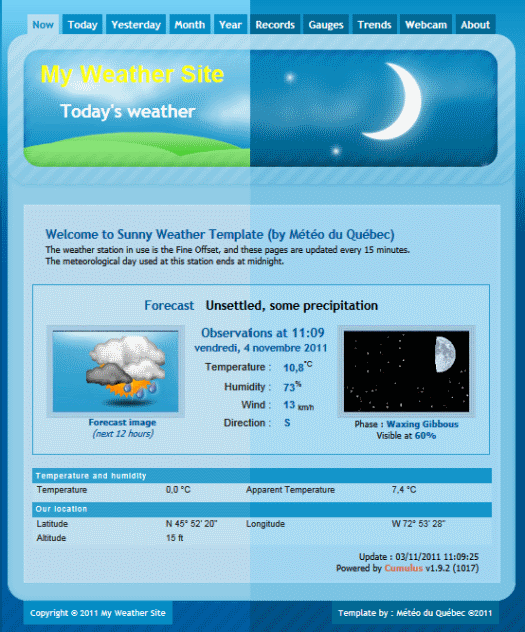
This template give you opportunity to show all weather informations. Based on Cumulus version 1.9.2 it counts no less then 450 weather informations. This easy installation template is very complete with it's 12 pages:
index.htm - The home page with brief weather informations.
gauges.htm - Weather informations, with a dashboard look.
today.htm - Observations of the day page.
yesterday.htm - Yesterday observations page.
thismonth.htm - This month weather data page.
thisyear.htm - This year observations page.
record.htm - All time records page.
trend.htm - Graph page of latest hours.
system.htm - Secrete page; shows station status.
system.htm - Station status with extra sensors.
infos.htm - Informations about your station.
empty.htm - Blank page preformatted for your needs.
webacam.htm - Web camera page.
This template could be easily customized. - Built in html, Sunny Weather is simple to modify. Pages are commented, ther users will easily understand and adapt this template for it's proper needs.
This template consist of many files that you have to copy on your Pc and to your web site. You have to already have installed Cumulus and it's website template.
First, be safe!
We will replace files to install this template, then it's hardly recommanded to take existing files in copy! First, start by finding the place where Cumulus is installed in your Pc (usually, C:\Cumulus).
In the folder Cumulus, you'll find vous a web folder. Take it enterily in copy. More simple, you could take a copy time to time of the entire Cumulus folder... just in case!
Step 1 : Archive extraction
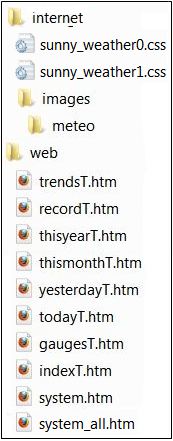
This template is compressed in .zip format for convenience. Uncompress content of file MDQ_Sunny_Eng_v1_1a.zip on your computer. You'll find inside 2 folders: web and internet; containing template and all its components.
Archive content :
internet - This folder contain all the files that you have to copy to your web site.
sunny_weather0.css - Page layout for nights.
sunny_weather1.css - Page layout for days.
dbimages - Foolder containing scipts for gauges infowindow.
web - Folder contain all .htm files that has to be processed by Cumulus to replace Cumulus Webtags by pertinent weather informations.
Note that many filenames ends with letter "T"; thoses files will be prossessed by Cumulus automaticly.
infos.htm - Informations on your station.
empty.htm - Empty page preformatted to easily create your custom page.
webacam.htm - WebCAM page.
system.htm - This file is your "Web Console" that shows your station and Pc status accessible by Internet
system_all.htm - Console, with optional sensors incl.
Note : infos.htm, system and webcam.htm will need a paericular attention because we have to tell Cumulus to process these files and to send it to your website. Files are optional, installation is up to you.
Step 2 : Copy files :
Copy internet folder content on your web site.
Copy all web folder contenu into web Cumulus folder in your Pc (ex. C:\Cumulus\web).
Step 3 : Some settings into Cumulus
Now, we have to modify some settings into Cumulus to feed correctly our template.
Change Cumulus colors :
By défaut, Cumulus show graphs and gauges in white over gray, but our template shows more "sunny" colors, then we will need to change those colors.
Colors modification screen count no less then 42 diffrent cases, then it could be too long to change it by had without doing any error. Météo du Québec having in mind a role to facilitate tasks of weather webmasters, then I suggest this little utility to do the "dirty job" for you!
IMPORTANT : Before, do a copy of your actual Cumulus.ini file!
Automatic color palette changer
Change graphs size :
Into Cumulus,
- open Configuration menu, - then option Internet
A frame will appear with 2 tabs in upper position.
- Take tab Sites/Options
In page center, you'll find a section titled Web graphs
- Tick case Resize - Enter 720 in width case
- Enter 288 in height case
Finally, click OK to confirm your modifications.
Then, you have now all Cumulus weather infos ready to be send to your web site to form a fonctional and dynamic pesonal weather site. If you don't need optional pages, your installation ends here!
Sunny Weather - Processing optional pages
Console page :
Like mentioned up here, installation of this management console for your weather station need a little more configuration into Cumulus. Find here steps to follow :
File system.htm :
That's the file that has to be processed by Cumulus to give you all status of your weather site.
Like you have allways copied that file earlier, the only other thing to do is to tell Cumulus to recognize this page as a file to be processed at the same time as the other weather pages of your site.
At Cumulus main screen, open Configuration menu,
In Configuration menu, choose Internet option,
At the top of the screen Internet Settings, choose tab Files,
That will bring you to the transfer and transformations configuration screen:
Be sure that the cases "Include Standard Files" and "Include Standard Images" are ticked like our sample.
To process our page, Cumulus need 4 informations :
Local filenames : - Access path to your file system.htm
Remote Finenames : - Destination URL addres dor the file system.htm.
Process? : - Selected to transform Cumulus Webtags in real weather data.
Ftp? : - Tell Cumulus to upload this page on your website.
Then, in our sample : (bold indicate essential parameter)
Local filenames :C:\Cumulus\web\system.htm
Remote Finenames : /public_html/system.htm
Process? : - Ticked
Ftp? : - Ticked
You simply have to replace access path to file system.htm, on your Pc ("C:" in our example), then in your website ("Public_html" in our sample)
Finally, you just have to select cases "Process?" and "Ftp?" ... to let the fun begin!
Your new Console will be added to your Website at the next Cumulus automatic upload process.
Infos and webcam page :
At last, we have 2 other optional pages that need extra care (infos.htm and webcam.htm).
For these pages, you have to tell Cumulus to process it as like system.htm page here.
But if you want to save on download time or amount of upload, you could only process (and ftp) it only one time... because these pages just need header uodate!
Et Voilà !
(If you don't want to wait next upload process, launch a manual upload with option "Web Update" into Cumulus "File" menu)