Weather Blues, seriously easy to customize!
prerequisite :For custumizing your template, you need :
Météo du Québec use (and recommand) Notepad++ as editor. Customizations :
|
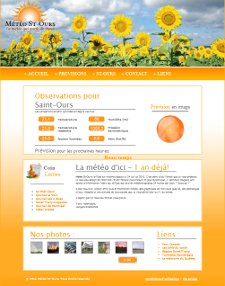
Personnel site with shinny colors. Broadcast weayher and informations about city of Saint-Ours-sur-Richelieu, in Québec
prerequisite :For custumizing your template, you need :
Météo du Québec use (and recommand) Notepad++ as editor. Customizations :
|

Weather Blues use richer mix of technologies to achieve better layout. Pages are based on html, but most of their layout is made into .css file; Weather Blues then could be qualified of CCS Template. Also, Javascript is used to add some "life" into this template.
CSS World has a main philosophy; getting all layout (as possible) out of html. This little effort is worthy because we have a lot less job to do when we want to modify something (modify width of a box, colors or background images). You modify it into the .ccs file and ALL your pages are changed automaticly!
Then, in Weather Blues pages, you will often encounter id="..." or class="..."; this is the way css recognize where to apply layout. In short, in a page, id could appear only one time, while class could appear many times in the same page. I've also spiced this template with javascript, as it work in the same way using mainly name="..." or id="...".
Below, with green lines, you see empty sections ("div") with class nane. There is no text inside, because they are "layout sections" only. class="header_top" place a thin image of a box top with rounded corner. As you already imagine, class="header_bot" add bottom round corner to our boxes.
Also, you see with red lines some other nested sections.They are not as empty as header_bot or header_bot, but only section id="slider" contain really something (images in that case). Then header is also layout section, but wrapper, slider-wrapper are javascript sections.
Finally, you see center section having id="slider" and class="nivoSlider", combining by that fact javascript and css in the same line. With id="slider", Javascript define an hidden area used for image swapping effects. Class nivoSlider define physical layout of this area.
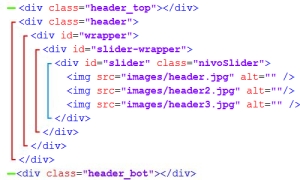
That brief introduction is important as it is the knowledge necerrary to have your template "in hand". All pages in Weather Blues Template use that structure.
Now that we have explained header structure... we are ready to put hands in the mud!
First, be safe! Take a copy of your current page, before doing modifications!
As you see above, Weather Blues header is composed of 3 different images, sliding continuously. but these beautifil pictures are only suggested presentation, you could adapt it to meet your needs and taste.
Changing images :
The easiest way to modify this header is to change photos in that slideshow for something more representative of your city or "dream place". To do so, just remind these things:
Slideshow library used, is actually set to default parameters; but we can easily change these parameters to suit your needs,
<script type="text/javascript">
$(window).load(function() {
$('#slider').nivoSlider();
});
</script>
We see in the frame above, the lines who initiate the header slideshow; you'll find these lines just below slides images. The interesting part is the word nivoSlider(), like you see parentheses are empty. Empty say to nivoSlider tu use its defaults, but betweem these parentheses we could specify our own parameters.
<script type="text/javascript">
$(window).load(function() {
$('#slider').nivoSlider({
effect: 'random', // Specify sets like: 'fold, fade, sliceDown'
animSpeed: 500, // Slide transition speed
pauseTime: 3000, // How long each slide will show
startSlide: 0, // Set starting Slide (0 index)
directionNav: true, // Next & Prev navigation
directionNavHide: true, // Only show on hover
controlNav: true, // 1,2,3... navigation
controlNavThumbs: false, // Use thumbnails for Control Nav
pauseOnHover: true, // Stop animation while hovering
manualAdvance: false, // Force manual transitions
prevText: 'Prev', // Prev directionNav text
nextText: 'Next', // Next directionNav text
randomStart: false, // Start on a random slide
});
});
</script>
Then there is a lot to try to find your own configuration (double slash "//" represent comments). For further details, I invite you to go to this link to see all possibilities and complete way to use it.
If you want, you could easily remove slideshow for a page. If a conflict occur with something you want to add, or a page is to slow.
In <head>...</head>, remove this line.
<link rel="stylesheet" href="nivo-slider.css" type="text/css" media="screen" />
In <div class="header">...</div>, remove these lines.
<div class="header">
<div id="wrapper">
<div id="slider-wrapper">
<div id="slider" class="nivoSlider">
<img src="images/header.jpg" alt="" />
<img src="images/header2.jpg" alt=""/>
<img src="images/header3.jpg" alt="" />
</div>
</div>
</div>
<script type="text/javascript" src="lib/jquery-1.4.3.min.js"></script>
<script type="text/javascript" src="lib/jquery.nivo.slider.pack.js"></script>
<script type="text/javascript">
$(window).load(function() {
$('#slider').nivoSlider();
});
</script>
</div>
Your new <div class="header">...</div>, should look like this :
<div class="header">
<img src="images/header.jpg" alt="" style="padding-left:25px" />
</div>
Weather Blues template is showing in its index page, a little analog clock expected to show your time at your location.
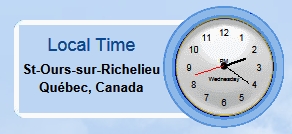
As usual, take a copy of original file, before edition
This clock is made of a javascript library and founded on 2 files: clockt.js and clockp.js
Editing clockp.js :
This file is the parameters file, then you have to edit it to correspond to your location. Let see them.
Note: Clock script include only needles and numbers, drawed over an image.
| clocksize=70; | Size of the clock |
| colnumbers='000000'; | Color of numbers on the clock face |
| colseconds='ff0000'; | Color of seconds needle or false to hide |
| colminutes='000000'; | Color of minutes needle |
| colhours='000000'; | Color of hour needle |
| numstyle = 0; | Style of numbers 0 = normal, 1 = Roman numerals |
| font_family = | font typeface. Actually set to 'helvetica,arial,sans-serif'; |
| localZone = 0; | 0 for visitor time, 1 to specify yours |
| mytimezone = -5; | if localZone = 0, you could specify your timezone |
| dst = 0; | Daylight saving time 0 = off, 1 = on |
| city = ''; | City name displayed on clock face |
| country = ''; | Country name displayed on clock face |
| fix = 1; | If set to 0, you could place it in absolute position |
| xpos=0; | If fix = 0, specify horizontal position |
| ypos=0; | If fix = 0, specify vertical position |
Editing clockt.js :
In first lines of that file, you could change some constant as language strings :
Finally, to go farther see that link